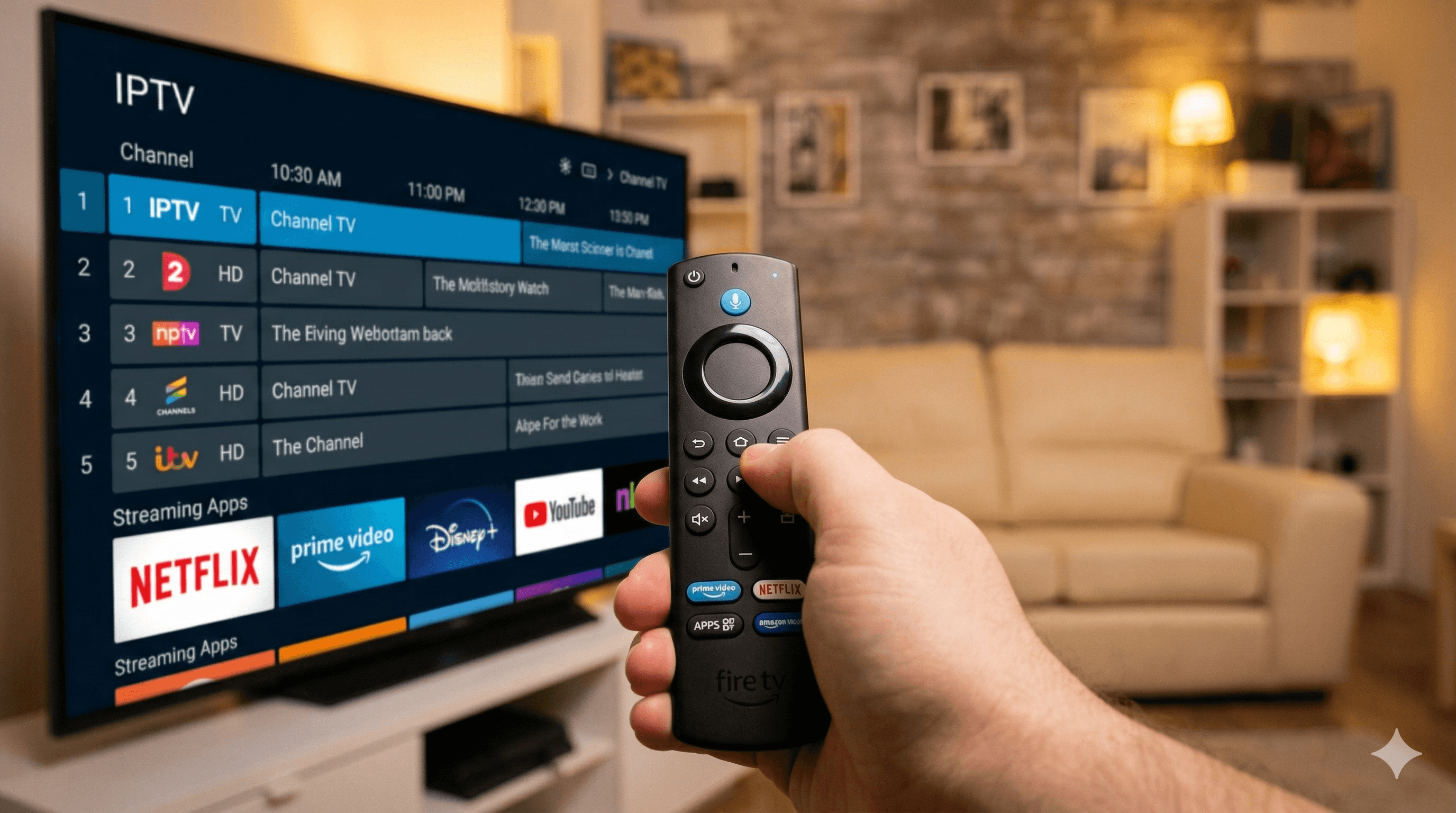
How to Watch IPTV on Firestick: Step-by-Step
The Amazon Fire TV Stick is one of the most popular devices for IPTV streaming — and for good reason. It's affordable, easy to use, and powerful enough for HD and 4K streaming. Learning how to watch IPTV on Firestick takes less than 10 minutes from start to finish.
This guide covers two methods: installing directly from the Amazon App Store (easiest), and sideloading apps that aren't listed in the store (for more options).
What You Need
Before you start, make sure you have:
- Amazon Fire TV Stick (any generation — Lite, 4K, or 4K Max all work)
- A Wi-Fi connection — at least 10 Mbps for HD, 25 Mbps+ for 4K
- Your IPTV credentials — username, password, and server URL from your provider
- An IPTV subscription — get yours here
Method 1: Install IPTV Smarters Pro from the App Store (Easiest)
IPTV Smarters Pro is available directly in the Amazon App Store, making this the fastest way to watch IPTV on Firestick.
Step 1: Open the Amazon App Store
From your Firestick home screen, navigate to the search icon at the top and type "IPTV Smarters Pro".
Step 2: Install the App
Select the app from search results and click Download. It will install in about 30 seconds.
Step 3: Open and Add Your Account
- Launch IPTV Smarters Pro
- Tap "Add User"
- Select "Login with Xtream Codes API"
- Enter your credentials:
- Username: provided by your IPTV service
- Password: provided by your IPTV service
- URL: your server URL (e.g.,
http://server.example.com:8080)
- Tap Add User
Step 4: Start Watching
Your channel list and VOD library will load automatically. Browse Live TV, Movies, or Series and press play on anything to start streaming.
Method 2: Install TiviMate via Downloader (Best Experience)
TiviMate is widely regarded as the best IPTV app for Firestick but isn't available in the Amazon App Store. You'll need to sideload it using the Downloader app.
Step 1: Enable Apps from Unknown Sources
- Go to Settings → My Fire TV → Developer Options
- Turn on "Install Unknown Apps"
- Find Downloader in the list and toggle it ON
Step 2: Install Downloader
- Go back to the App Store
- Search for "Downloader" (by AFTVnews — the official one)
- Install it
Step 3: Download TiviMate APK
- Open Downloader
- In the URL box, type the TiviMate APK URL (search "TiviMate APK download" on your phone for the current link from the official TiviMate website)
- Download and install when prompted
- Allow the installation
Step 4: Set Up TiviMate
- Open TiviMate
- Tap "Add Playlist"
- Choose "Xtream Codes" or "M3U Playlist"
- Enter your IPTV credentials
- Tap "Add" — your channels load in seconds
Recommended Settings for Best IPTV Performance on Firestick
Network Settings
- Use 5GHz Wi-Fi instead of 2.4GHz for faster, more stable streams
- If possible, connect via Ethernet using a USB-C to Ethernet adapter (Fire TV 4K Max supports this)
App Settings (IPTV Smarters / TiviMate)
- Set video player to ExoPlayer for best compatibility
- Enable hardware decoding for smoother 4K playback
- Set buffer size to 30 seconds if you experience occasional stuttering
Firestick Settings
- Go to Settings → Display & Sounds → Display → set to match your TV's native resolution (1080p or 4K)
- Disable "Data Monitoring" which can throttle streams
Troubleshooting Common IPTV Firestick Issues
Buffering or Freezing
- Check your internet speed — run a speed test on your phone
- Switch from 2.4GHz to 5GHz Wi-Fi
- Restart your router and Firestick
- Try a different IPTV app player (ExoPlayer vs. FFmpeg)
App Not Installing
- Make sure "Install Unknown Apps" is enabled for Downloader
- Check storage — clear cache on other apps if storage is low
Channels Not Loading
- Double-check your username, password, and server URL
- Ensure your IPTV subscription is active
- Contact your IPTV provider's support
Poor Picture Quality
- Lower the stream quality to 720p if your connection is slow
- Clear the app cache: Settings → Applications → Manage Installed Applications → [app name] → Clear Cache
Which Firestick Model Should You Buy?
| Model | Max Resolution | Best For | |-------|---------------|---------| | Fire TV Stick Lite | 1080p HD | Budget users, HD streaming | | Fire TV Stick 4K | 4K Ultra HD | Most users | | Fire TV Stick 4K Max | 4K Ultra HD + Wi-Fi 6 | Heavy streamers, busy networks |
For IPTV, the Fire TV Stick 4K is the sweet spot — affordable and handles any HD or 4K IPTV stream without breaking a sweat.
Start Watching IPTV on Firestick Today
Getting IPTV on your Firestick is one of the best upgrades you can make to your TV setup. Fast setup, no contracts, 1000+ channels in HD and 4K.
Browse IPTV packages — get your credentials instantly and follow this guide to be streaming in under 10 minutes.
Share this article